Prepare Your Devices Before Shipping

A few quick steps protect your privacy and help us pay you faster. Here’s your phone trade-in checklist.

1. Back up

iCloud or your computer (Photos, iMessage, Notes). Back up your iPhone to iCloud.

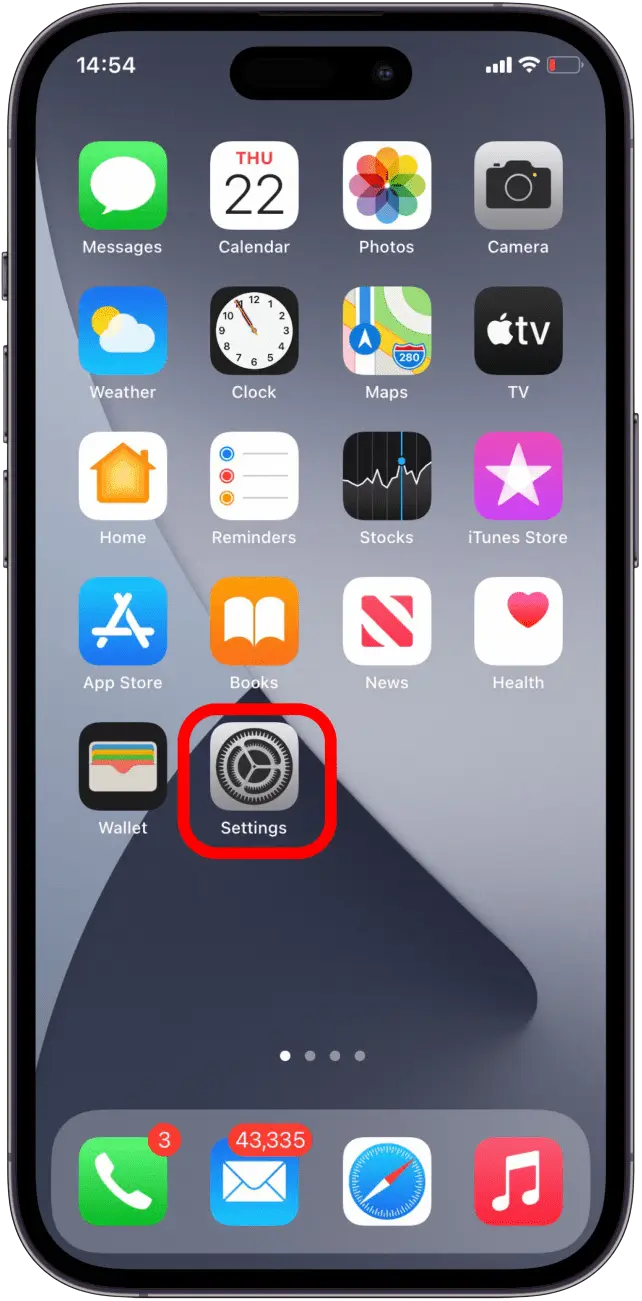
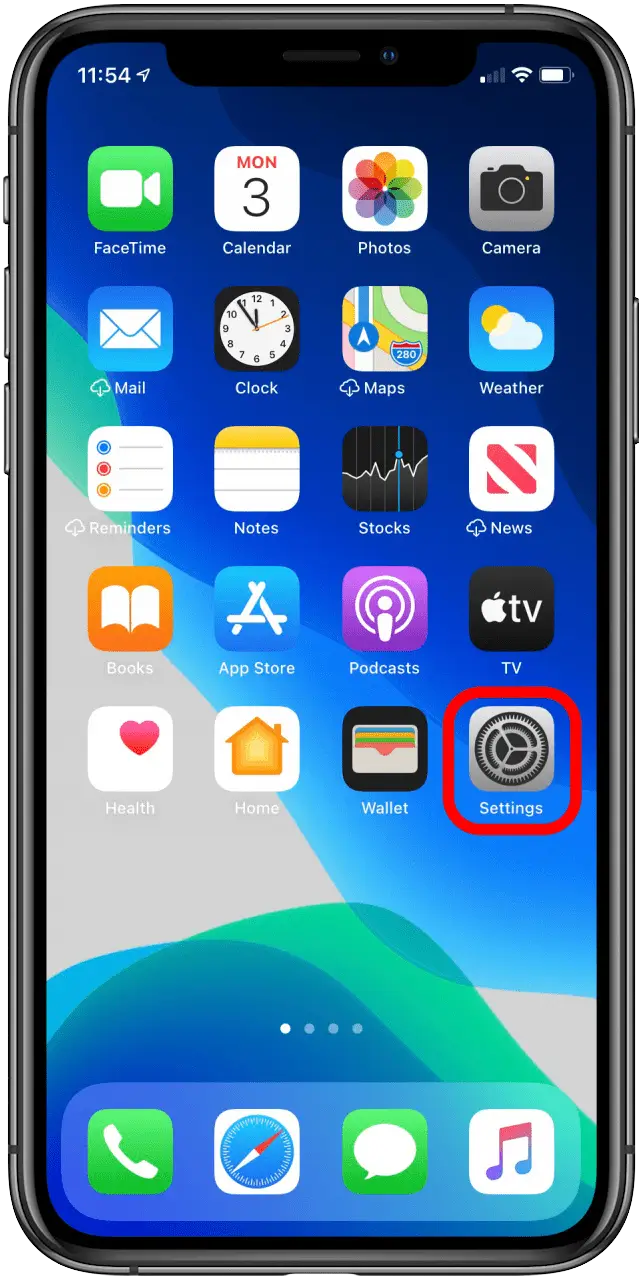
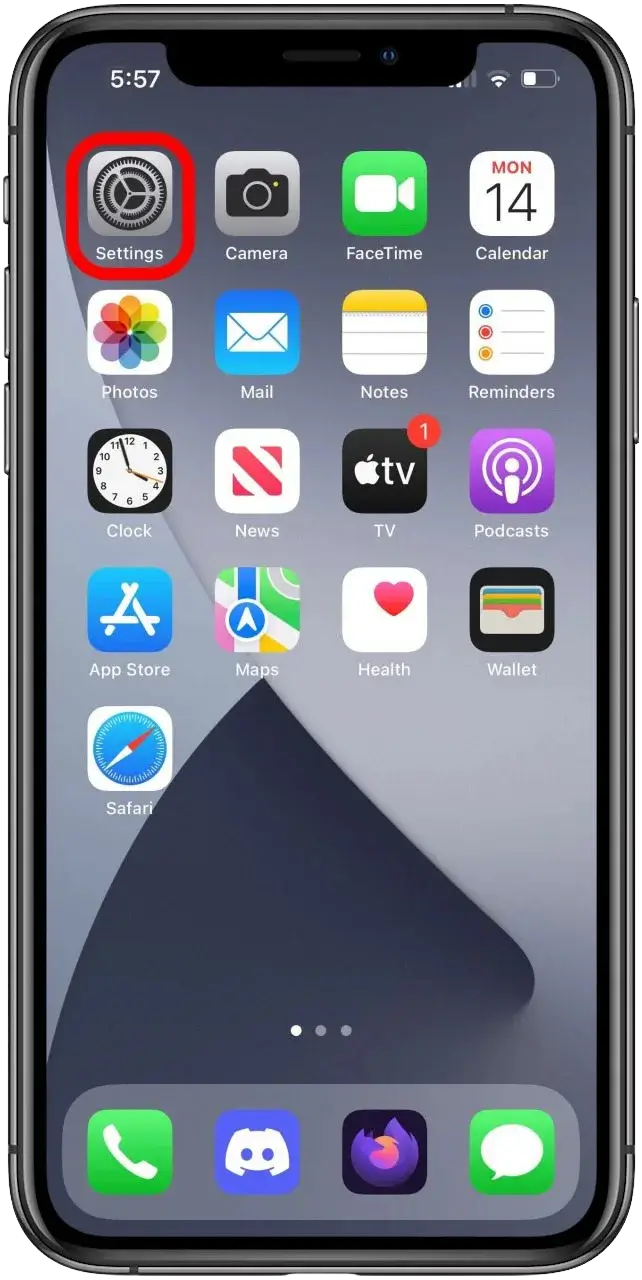
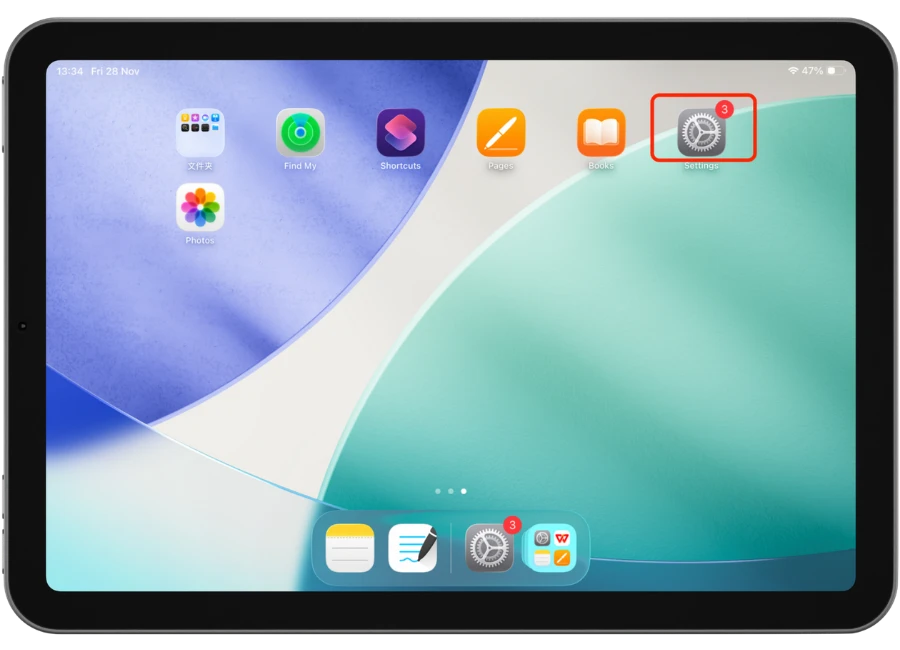
1. Tap Settings.

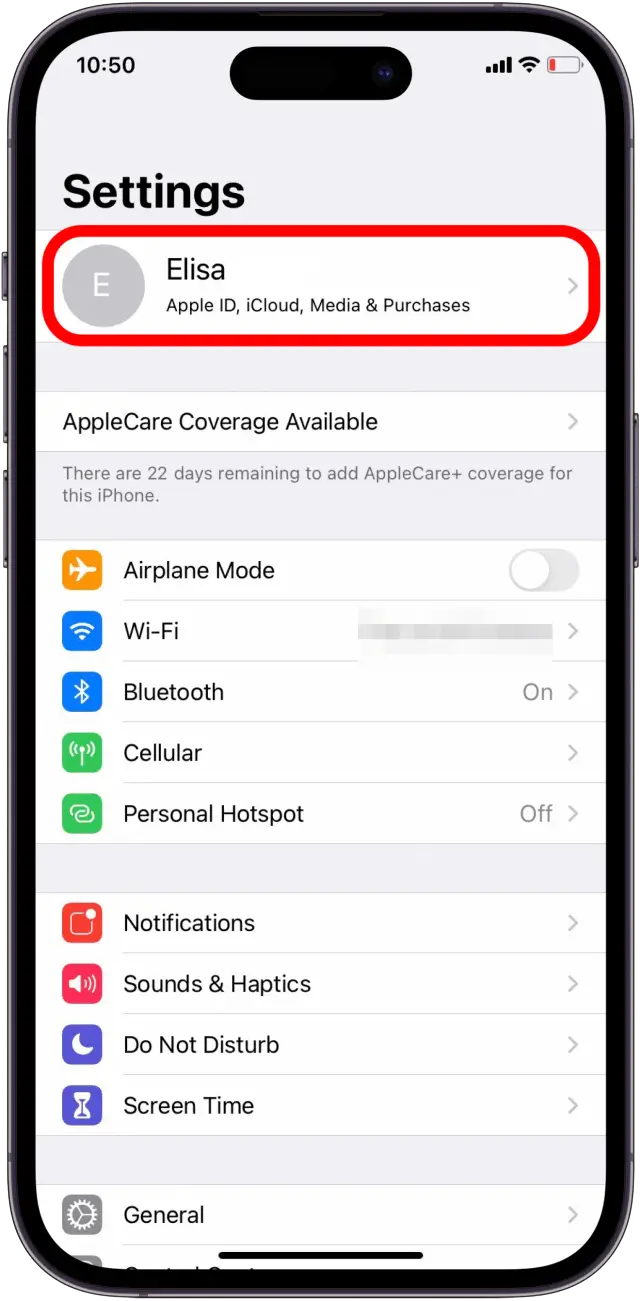
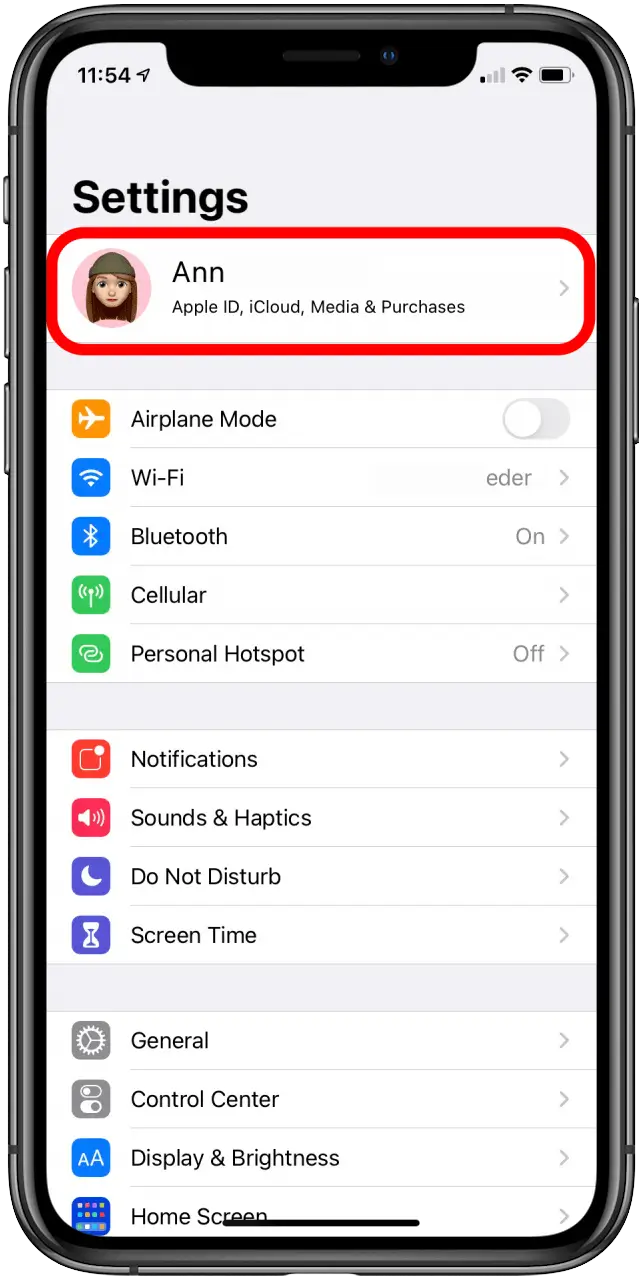
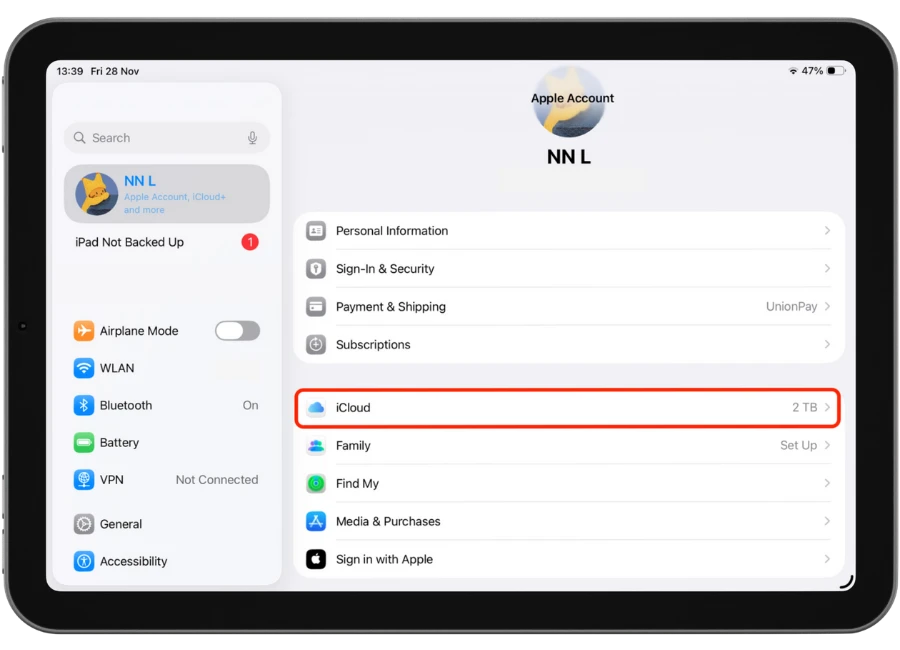
2. Tap on the Apple ID profile at the top.

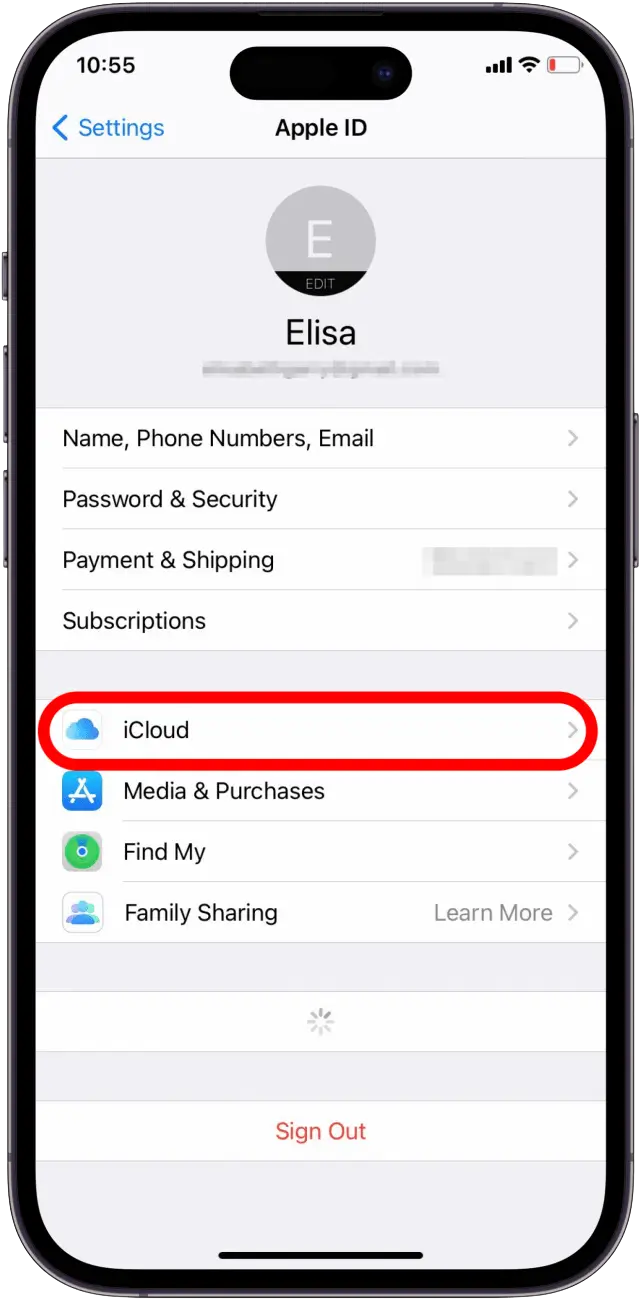
3. Tap iCloud

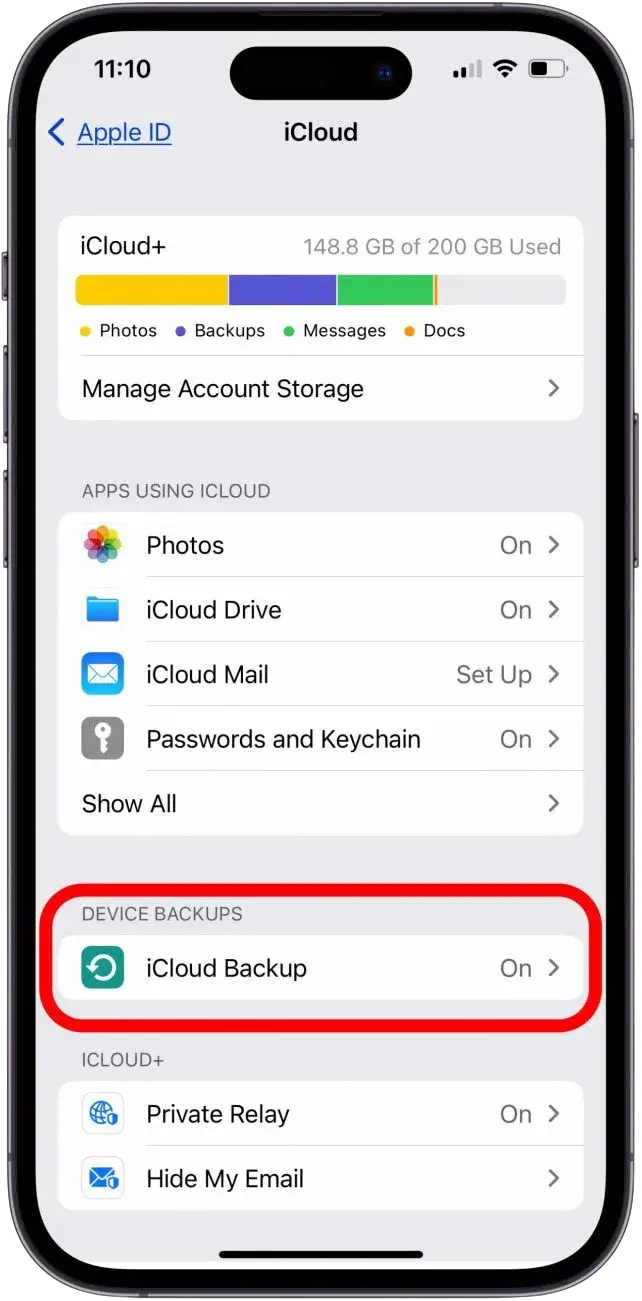
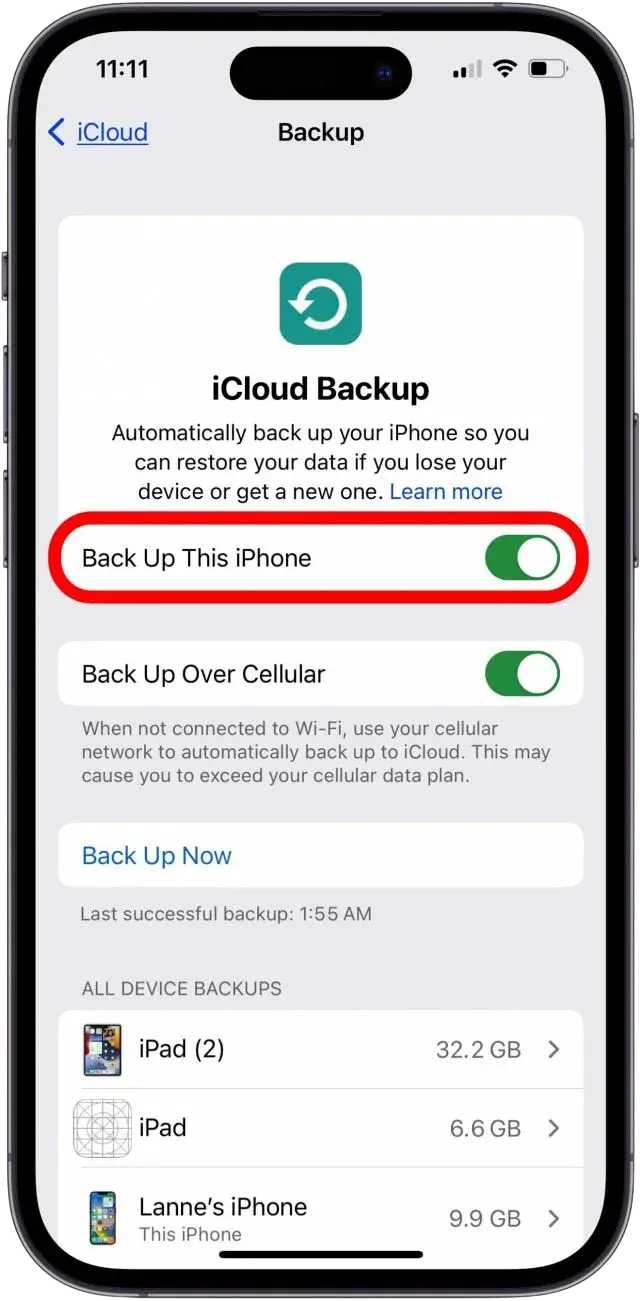
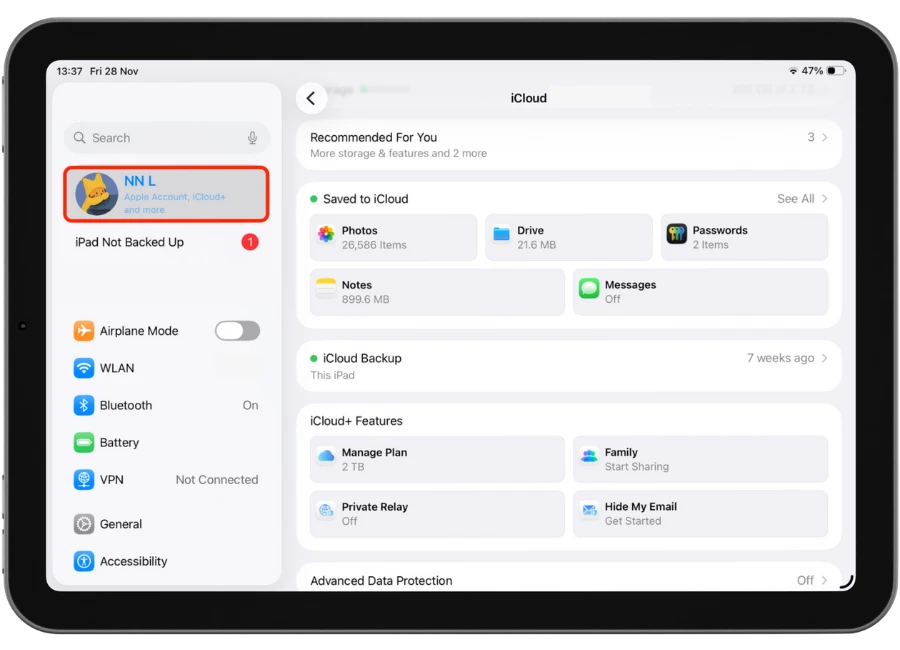
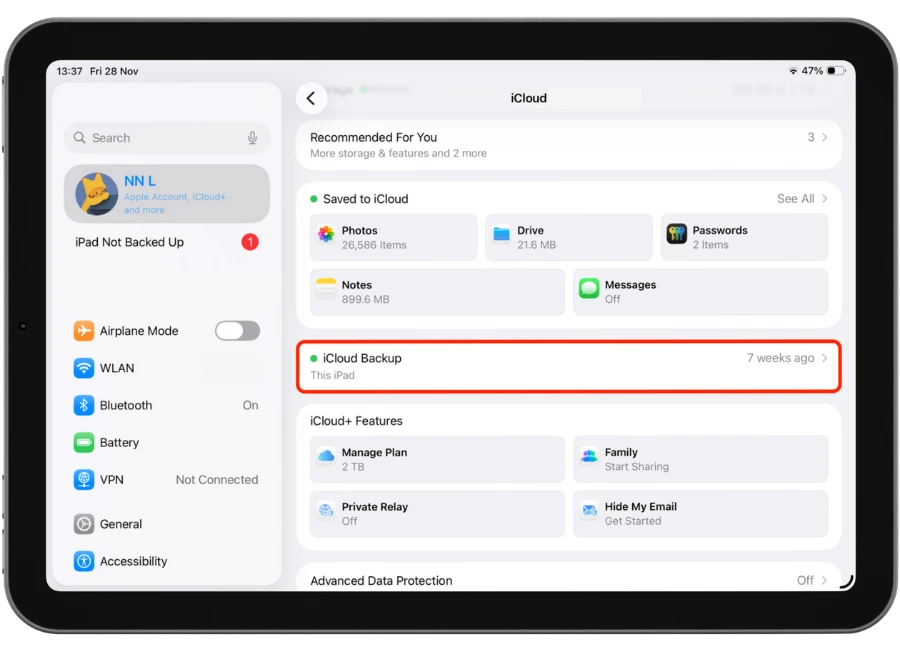
4.Scroll down and select iCloud Back up.

5. Please ensure that Back Up This iPhone is enabled

2. Turn Off Find My iPhone and Sign Out iCloud

Disable Find My, Sign Out On iPhone.

1. Tap Settings.

2.Tap On The Apple lD Profile

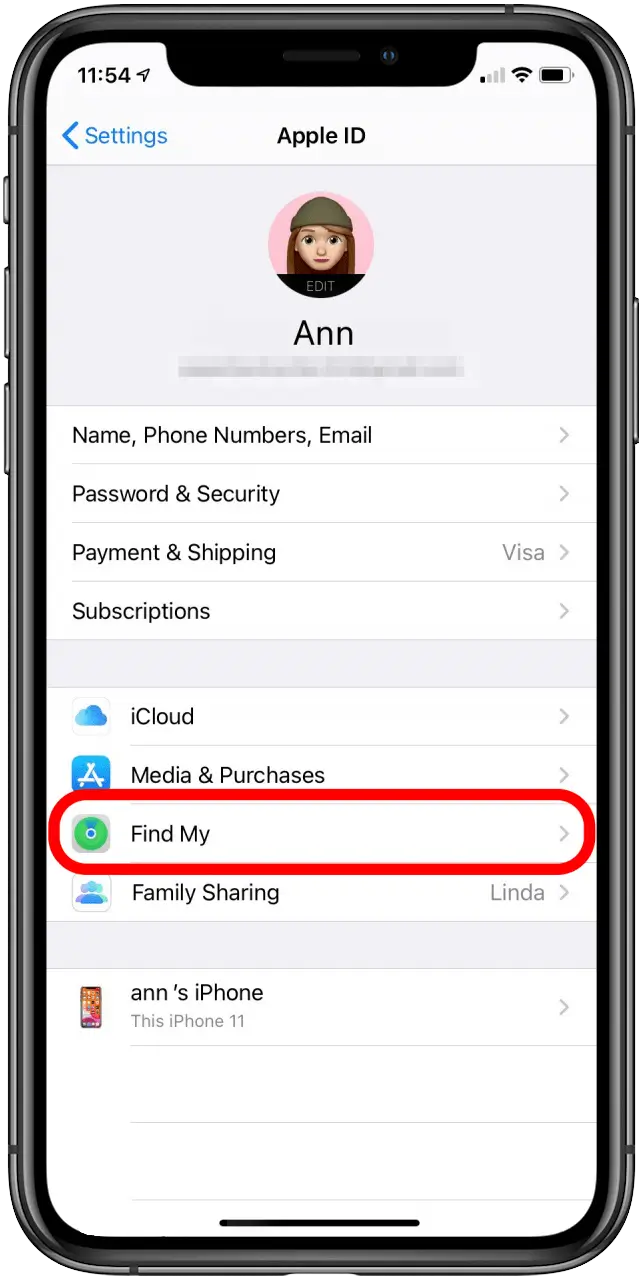
3.Tap Find My.

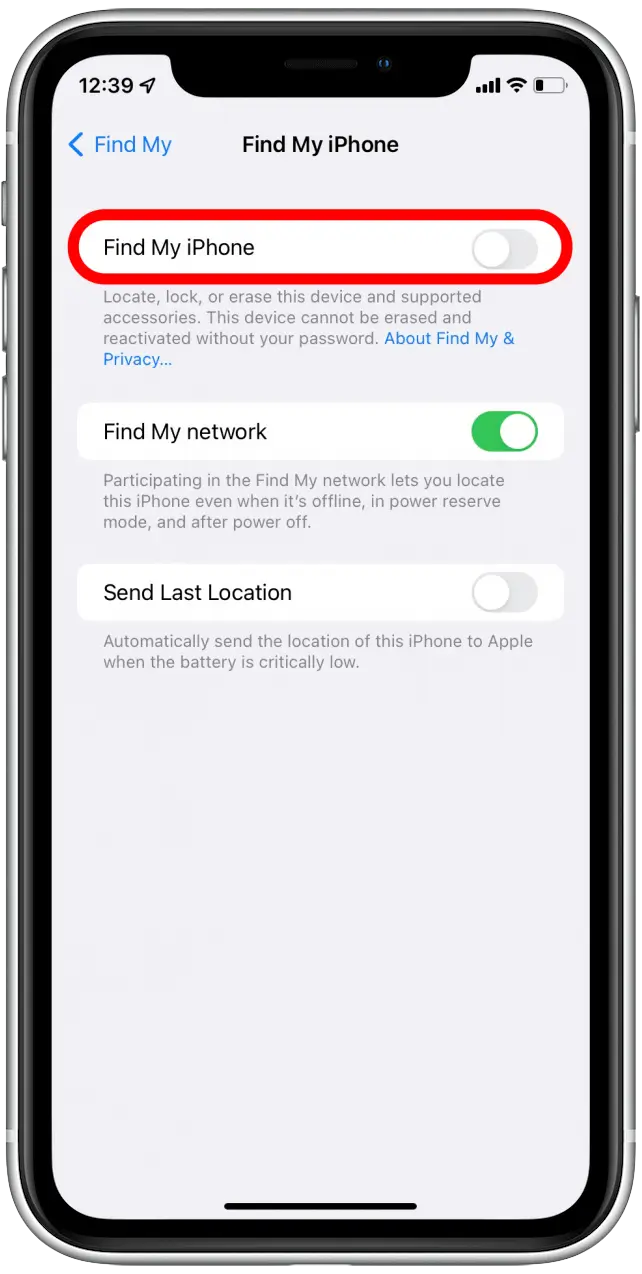
4. Turn Find My iPhone Off

5. Toggle Find My iPhone Off

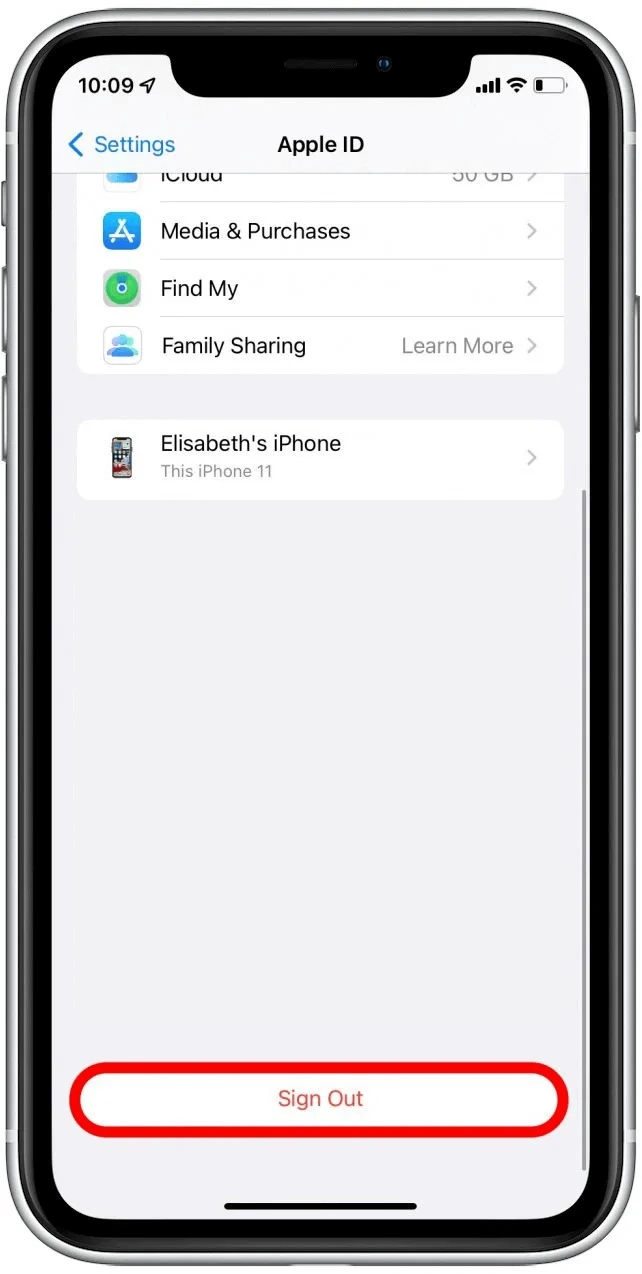
6. Sign Out Of My iCloud

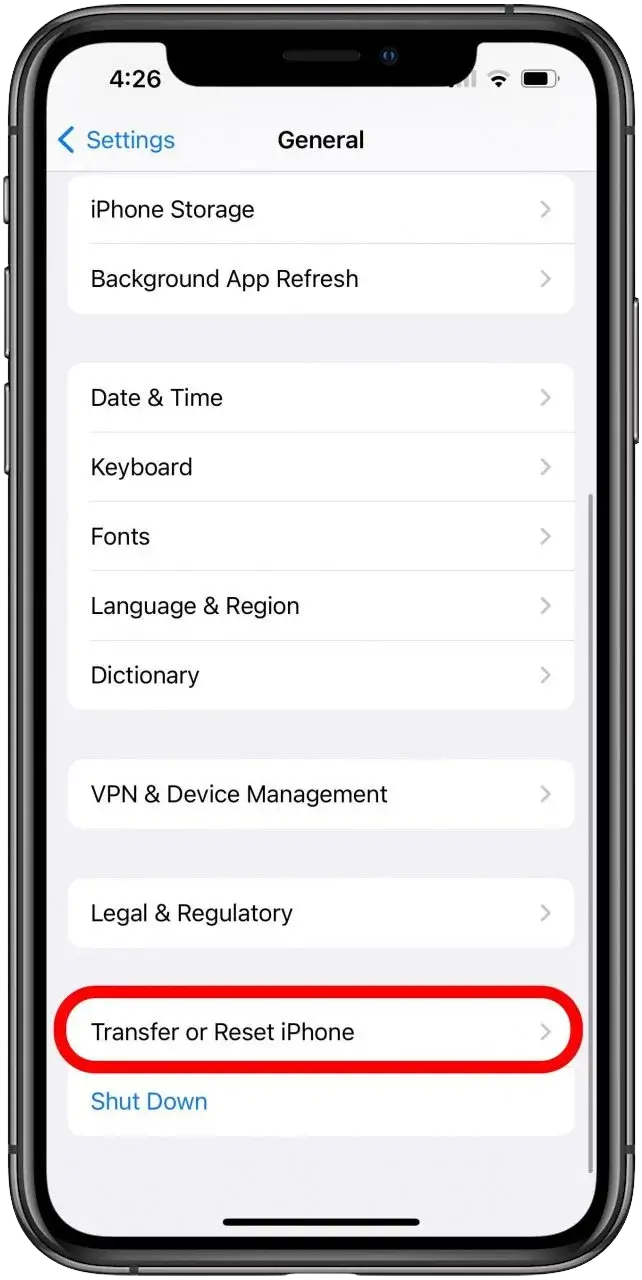
3. Factory reset

1. Tap Settings

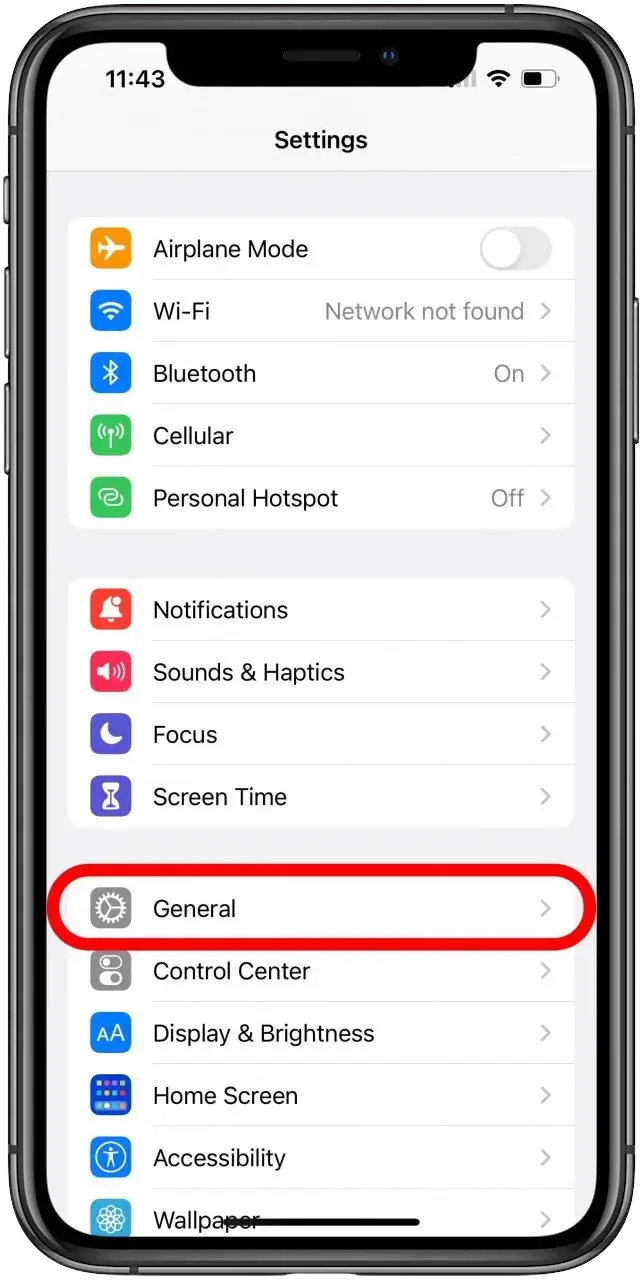
2.Tap General

3.Scroll down to the bottom and tap Transfer or Reset iPhone

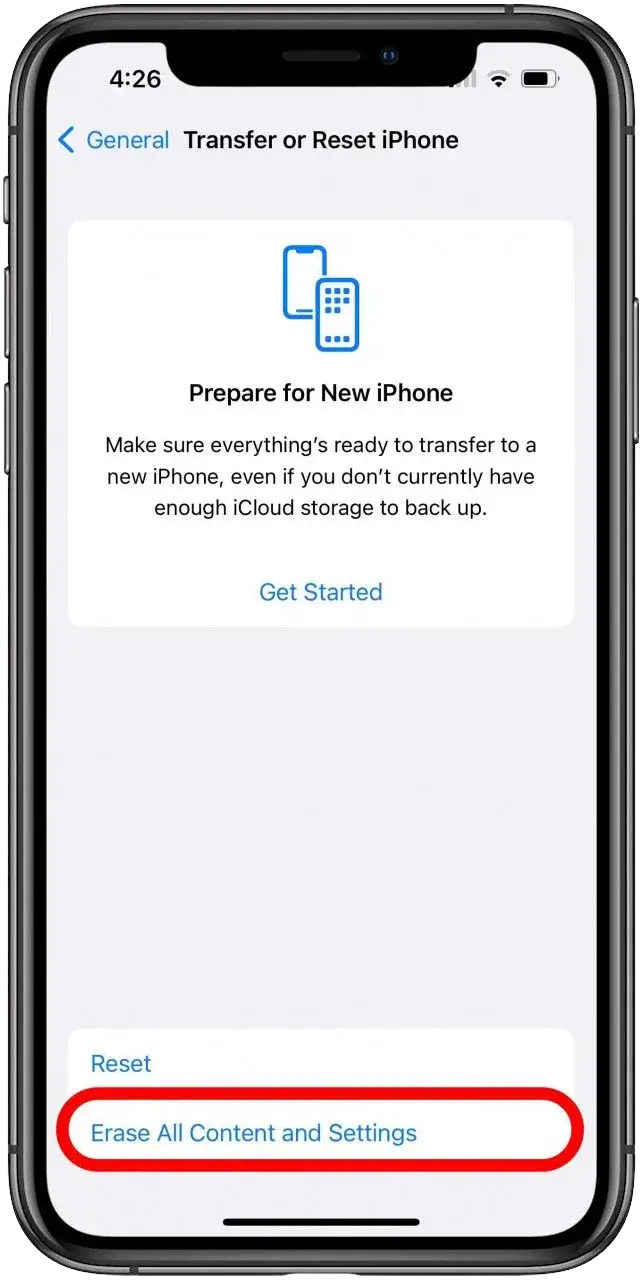
4. Tap Erase All Content and Settings

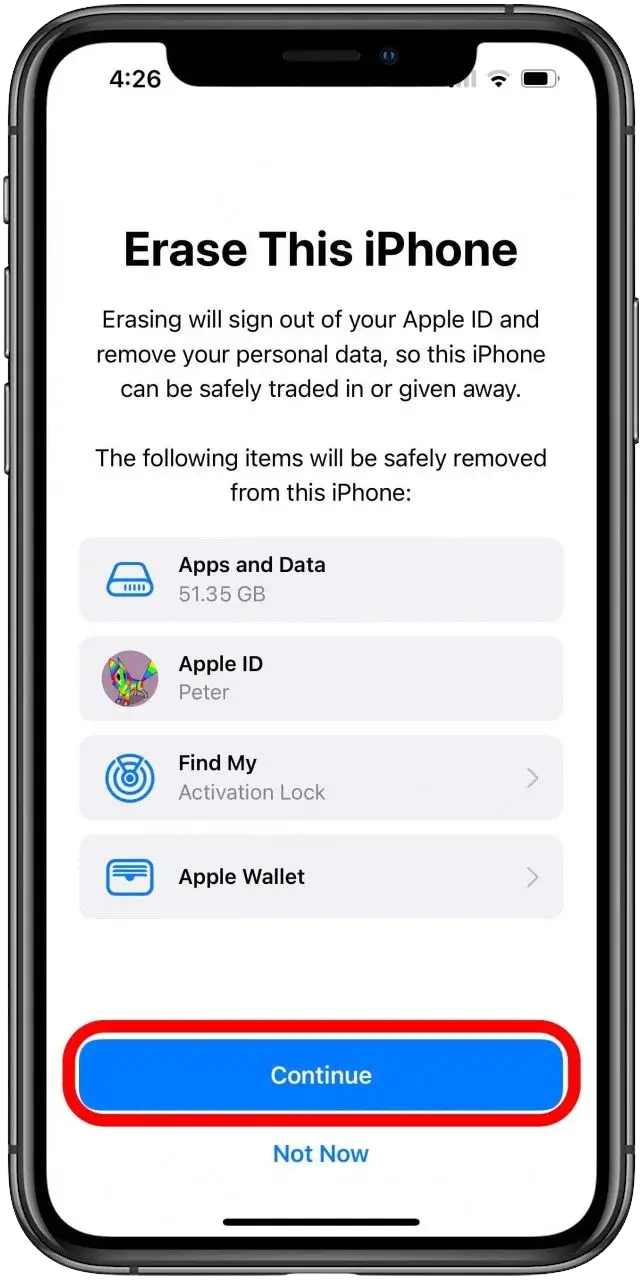
5.Once You’ve Checked Over Things On This Information Screen, Tap Continue.

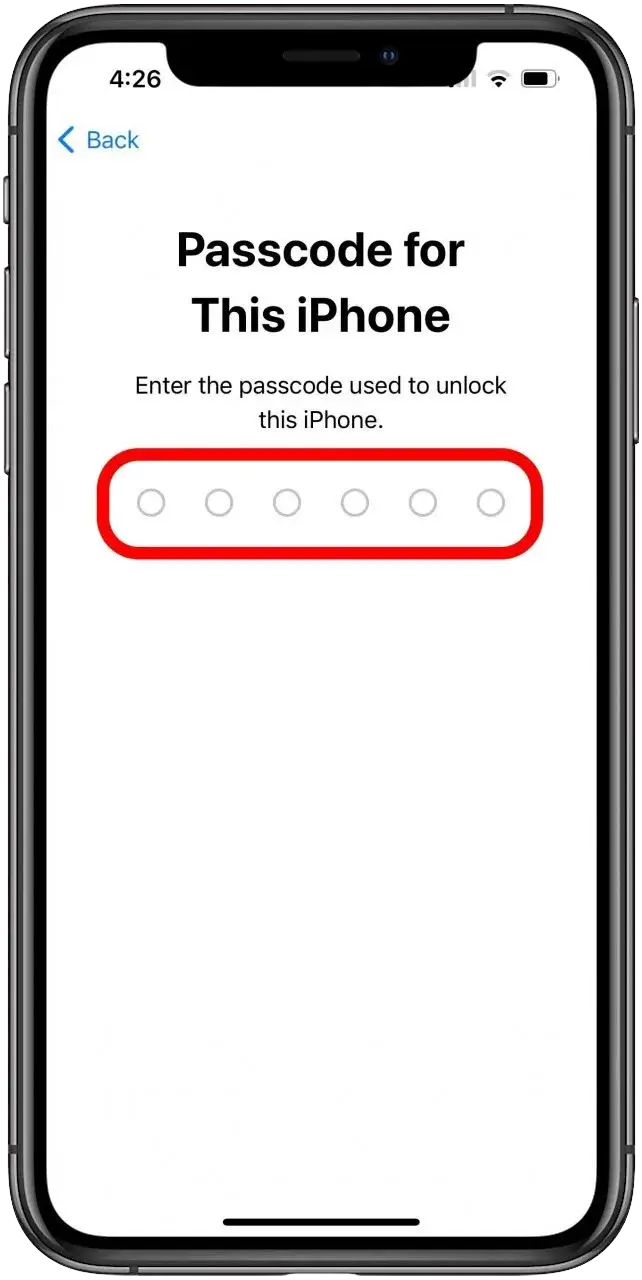
6. Confirm By Entering Your iPhone Passcode

4. Remove SIM & accessories

keep cases/cables unless requested.

5. Clean & power off

 wipe and switch off.

6. Pack safely

Make sure you securely pack your device and send. Use bubble wrap to wrap around your device and place the device in the box or original box. You can purchase bubble wrap and boxes from nearest post office, bunnings or office works.

Tips:
Do/Don't

Do: Pad the corners, use a sturdy box if needed.
Don’t: Leave iCloud locks on.

1. Back Up

iCloud or Your Computer (Photos, iMessage, Notes). Back up your iPad to iCloud.

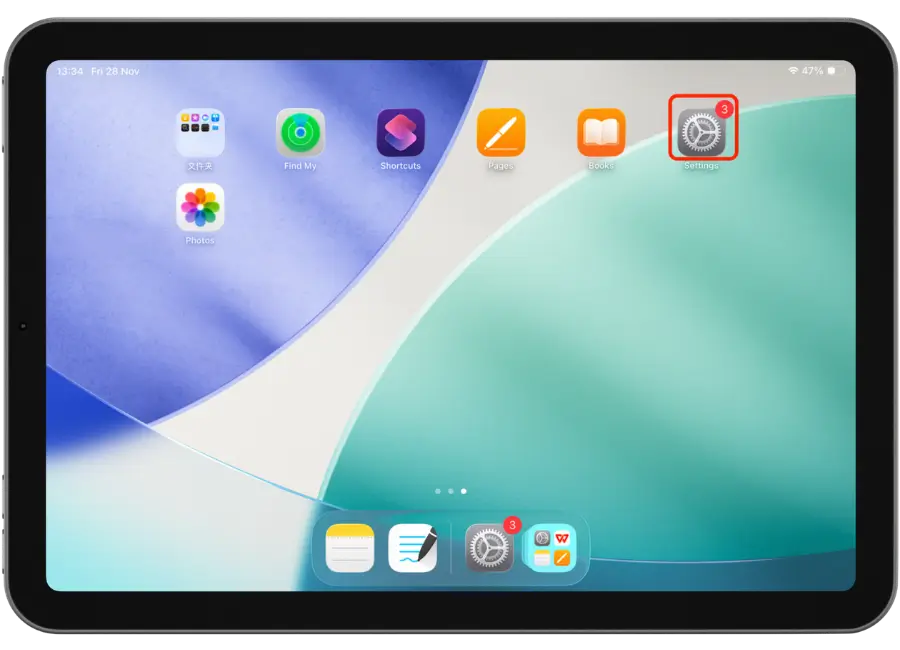
1. Tap Settings

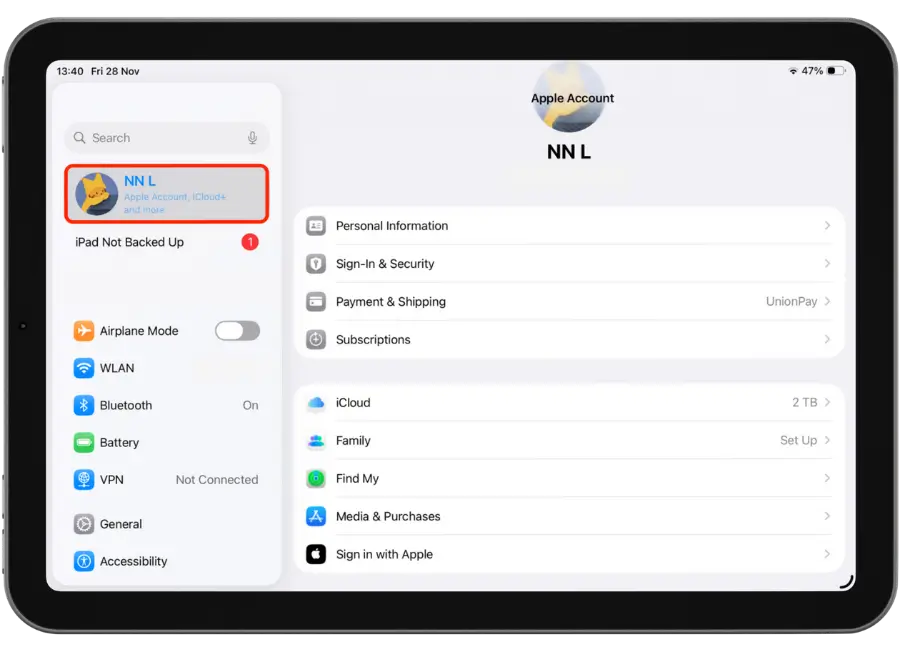
2. Tap On Apple ID Profile

3. Tap iCloud

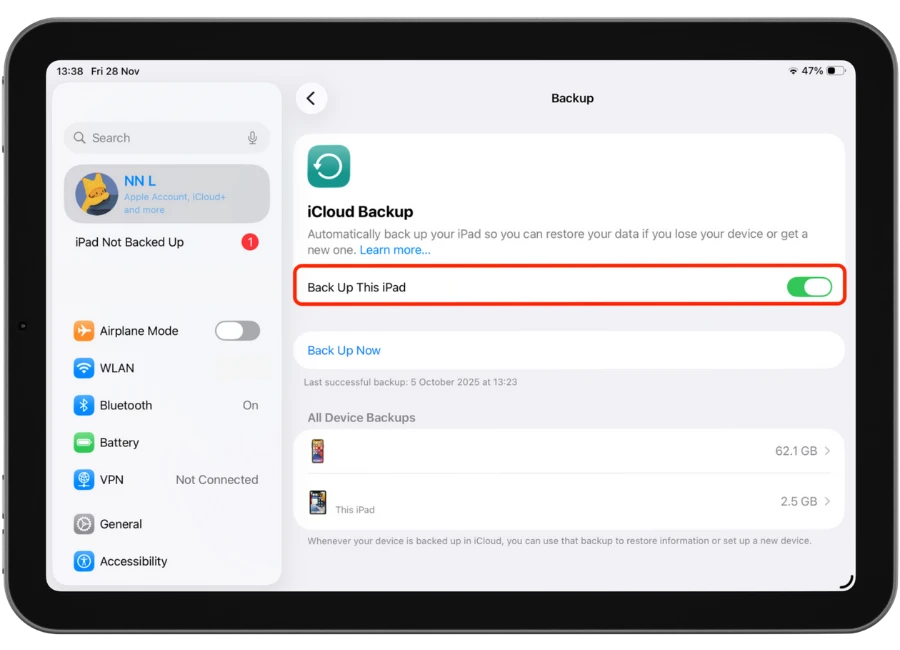
4. Scroll Down And Select iCloud Back Up

5. Please Ensure that Back Up This iPad Is Enabled

2. Turn Off & Sign Out iCloud

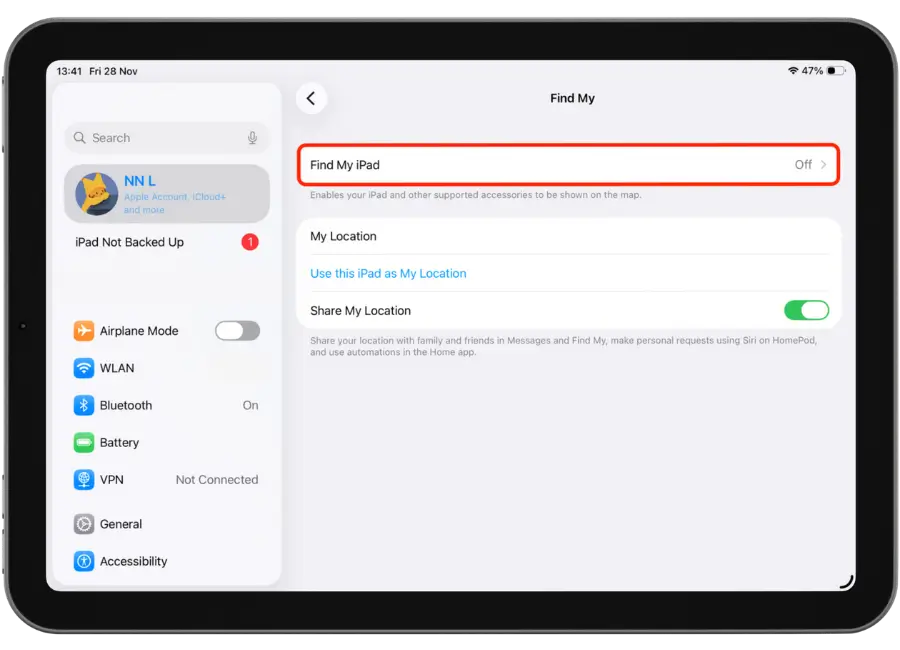
Disable Find My, Sign Out On iPad.

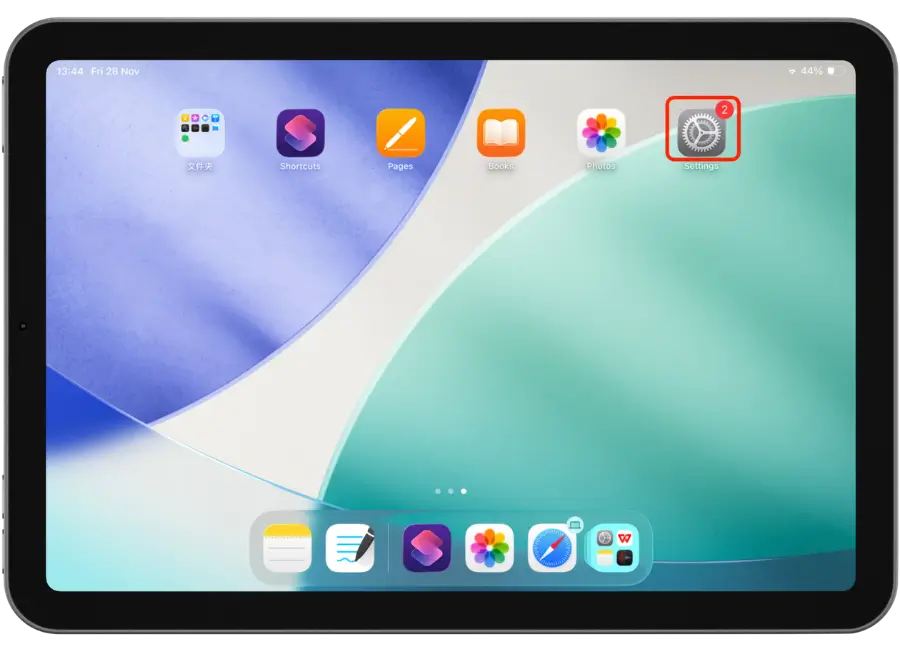
1. Tap Settings

2. Tap on Apple ID Profile

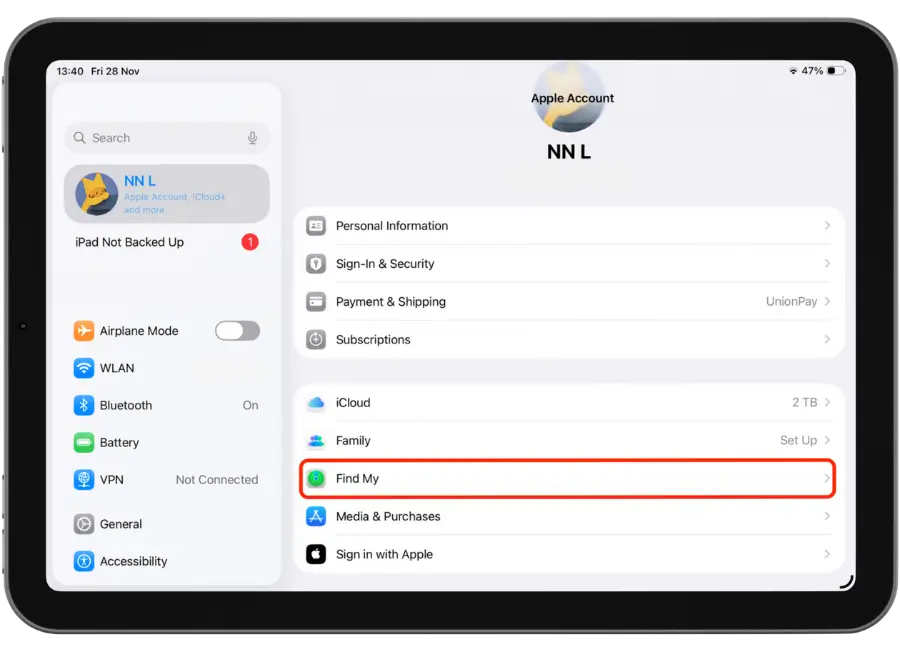
3. Tap Find My

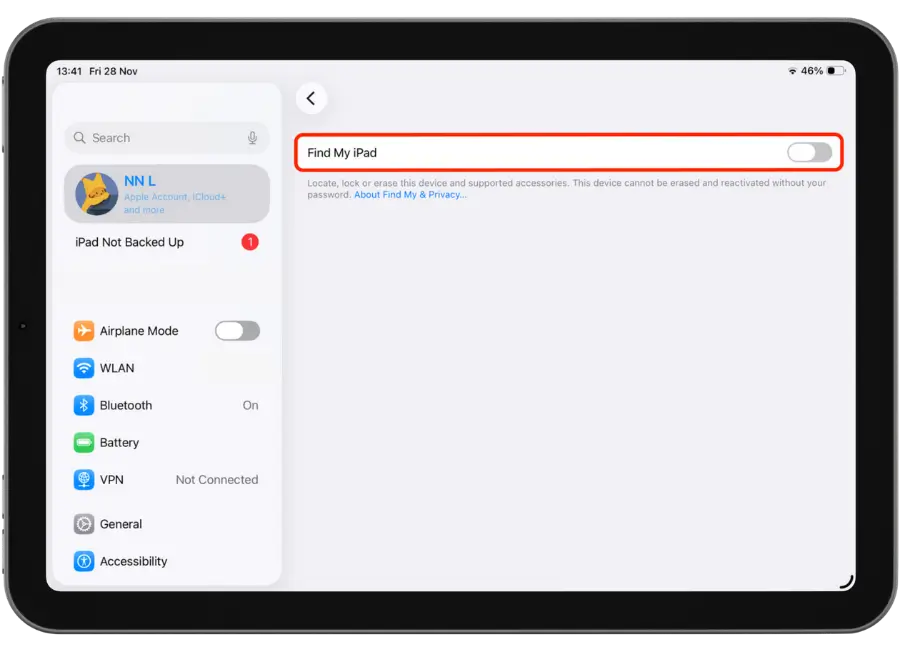
4. Tap Find My iPad

5. Toggle Find My iPad Off

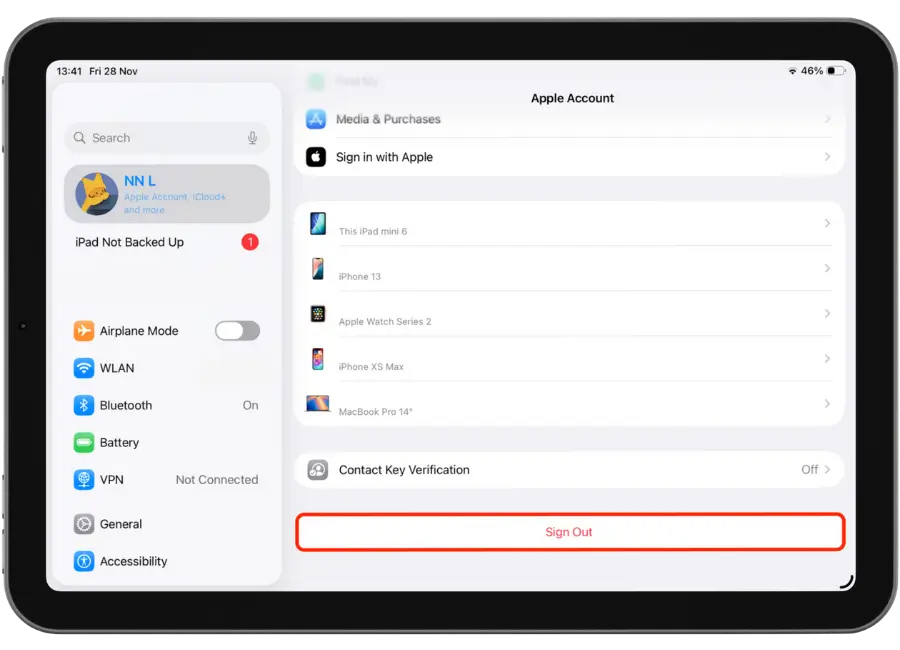
6. Sign Out iCloud

3. Factory reset

Settings > General > Transfer or Reset.

1. Tap Settings.

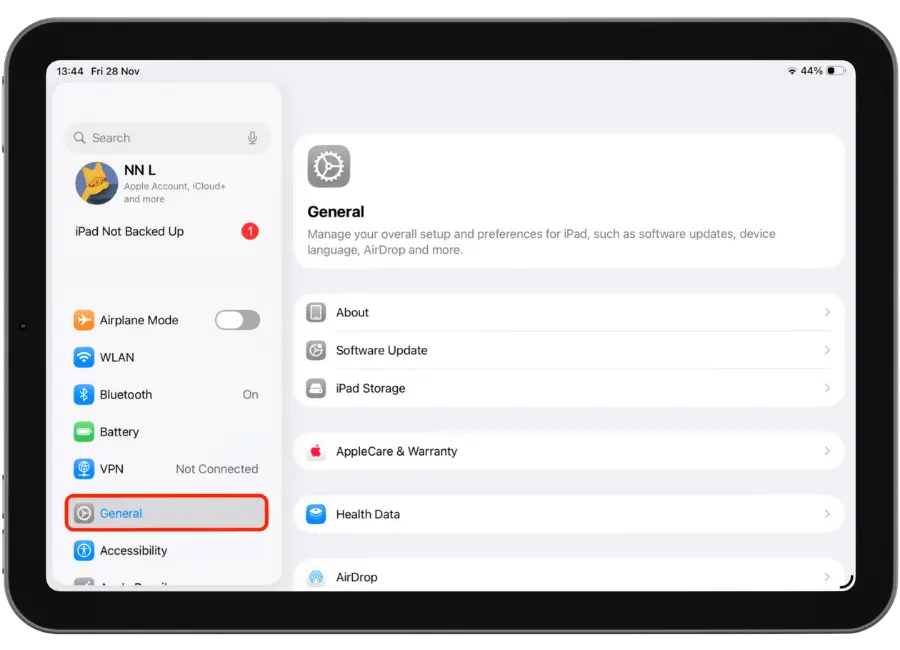
2. Tap General

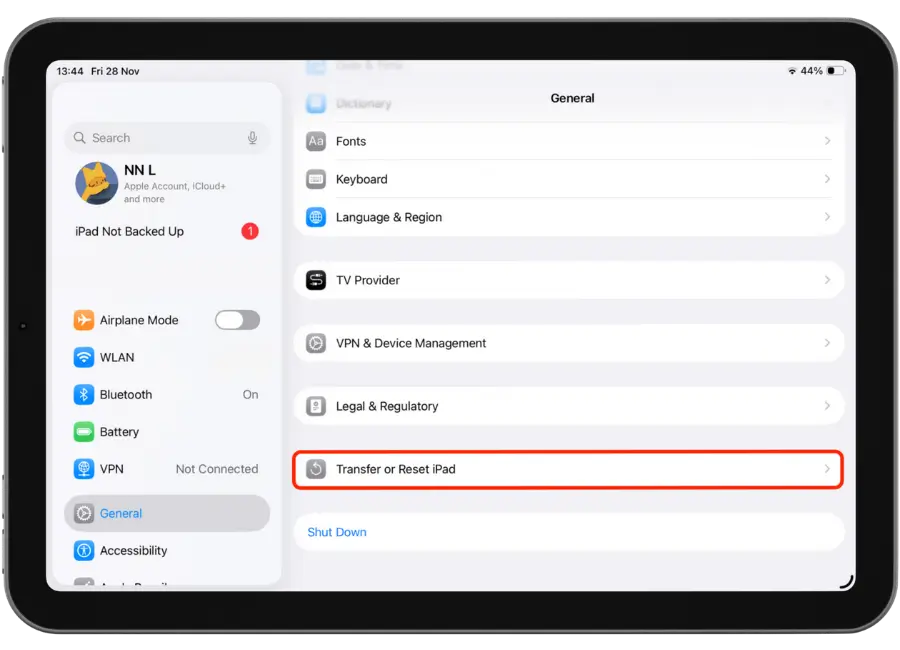
3. Tap Transfer or Reset iPad

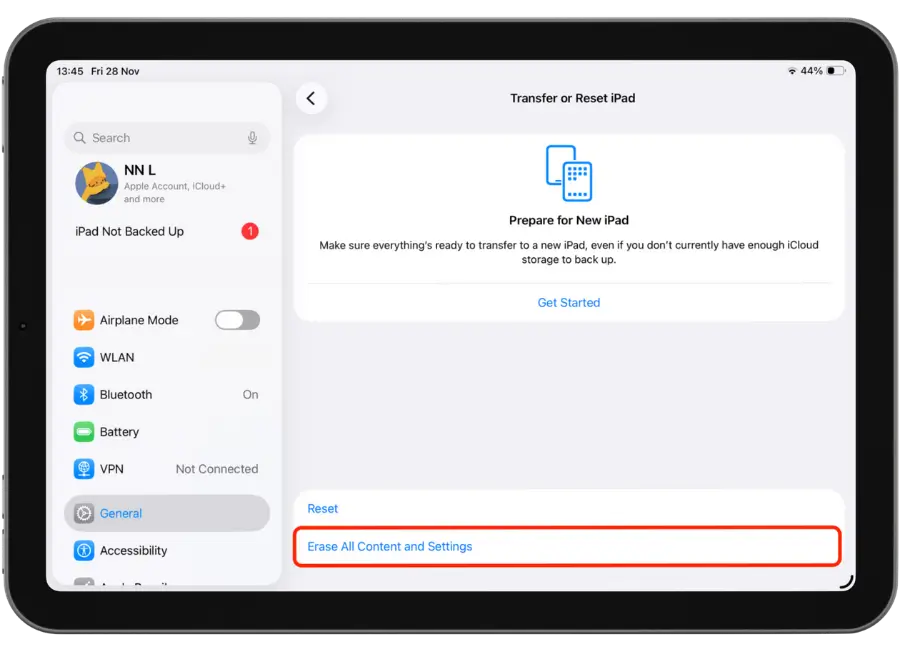
4. Tap Erase All Content and Settings

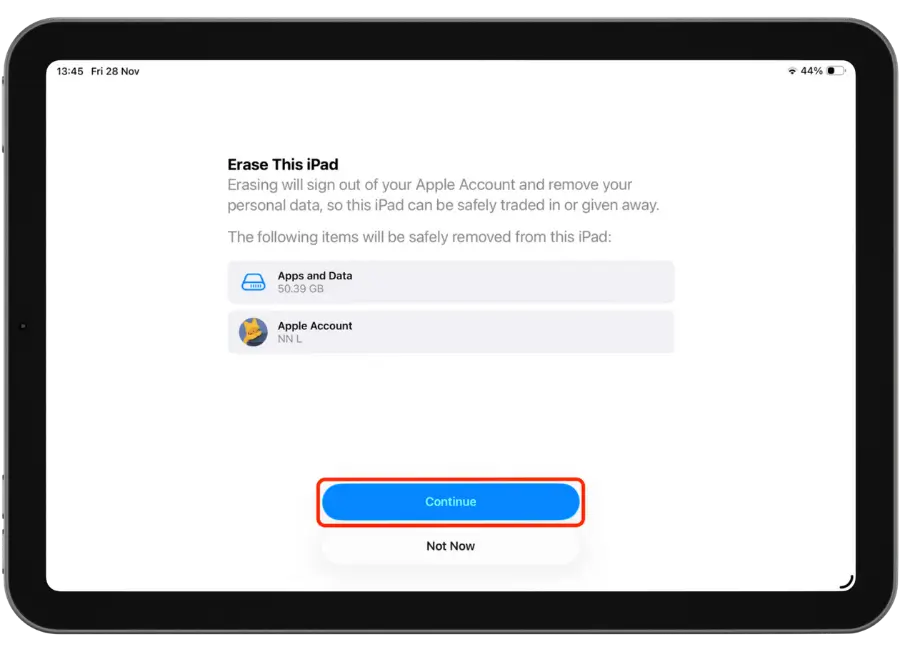
5. Once You’ve Checked Over Things On This Information Screen, Tap Continue

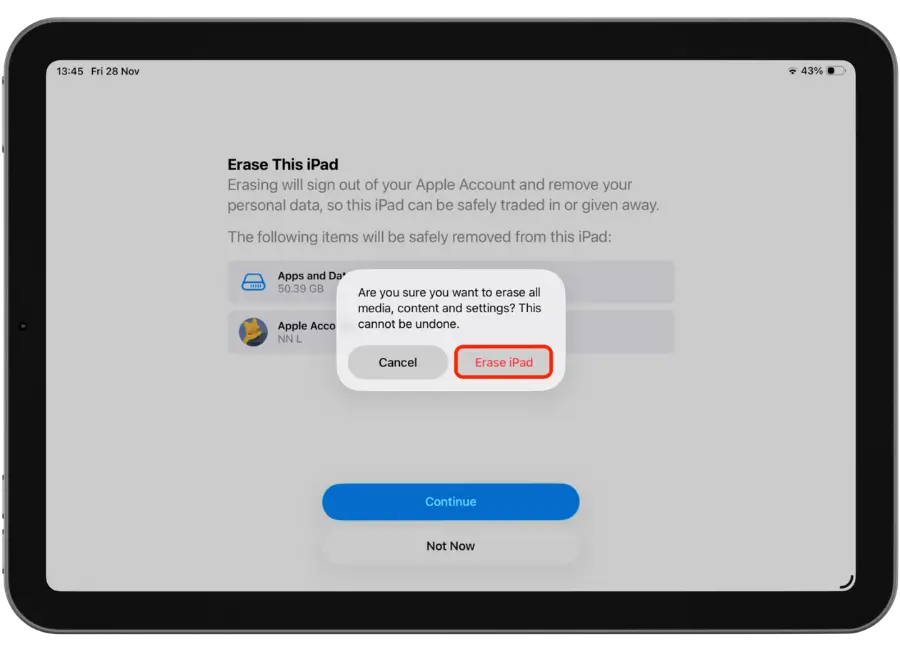
6. Tap Erase iPad

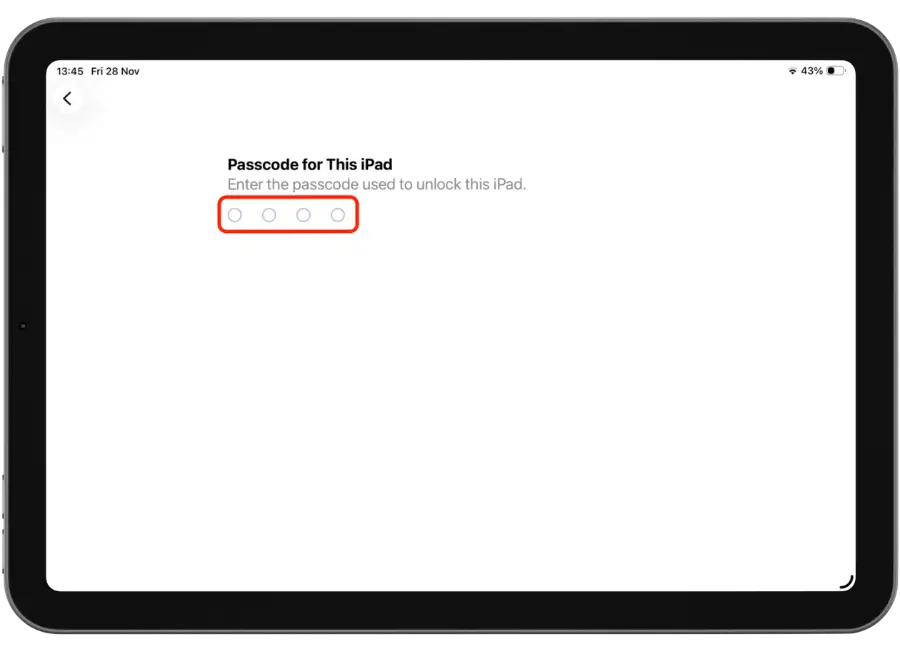
7. Confirm By Entering Your iPad Password

Tips:
Do/Don't

Do: Pad the corners, use a sturdy box if needed.
Don’t: Leave iCloud locks on.

1. Back Up
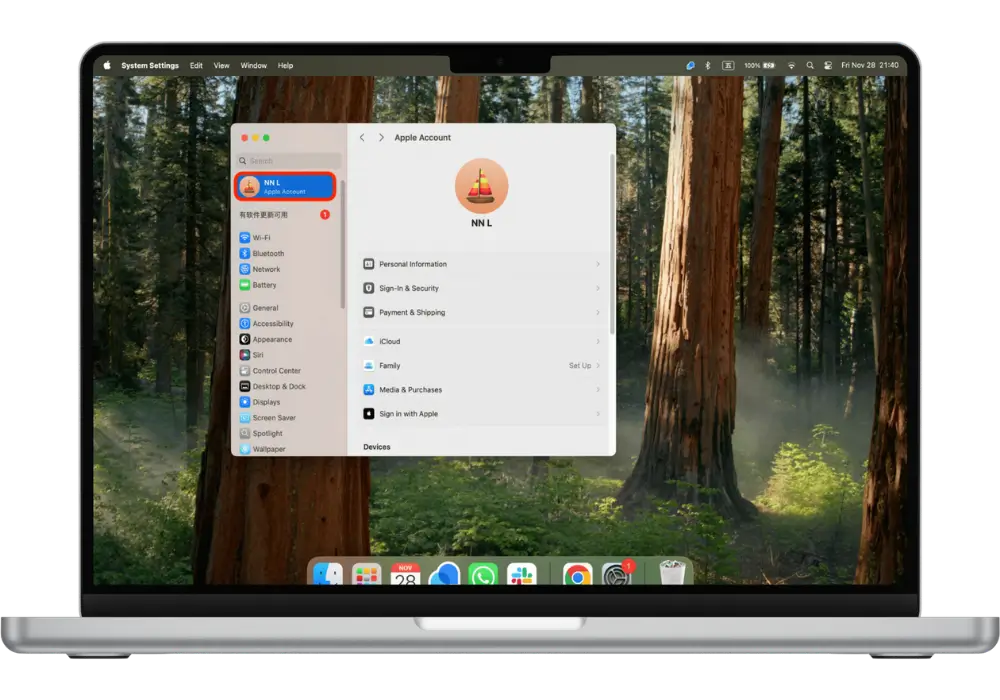
iCloud or your Computer (Photos, iMessage, Notes). Back Up your Mac to iCloud.

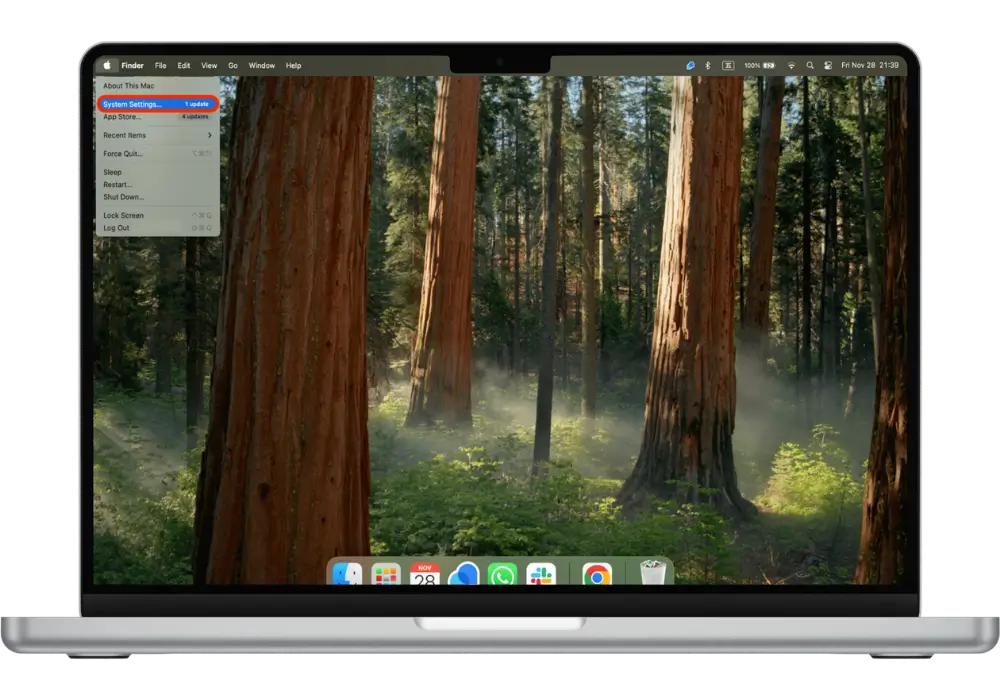
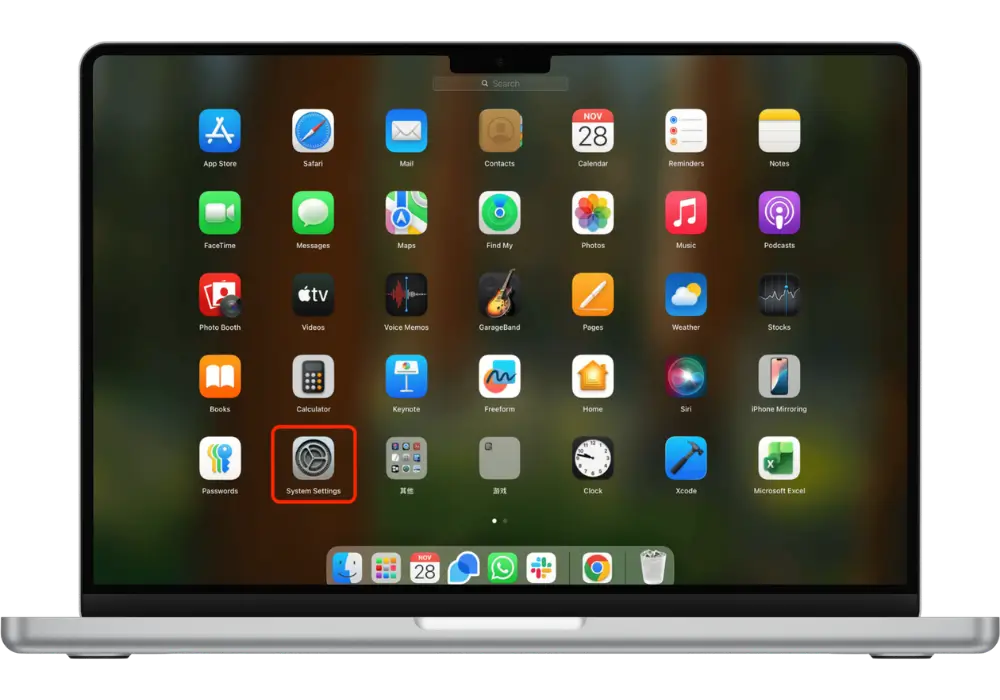
1. Tap System Settings

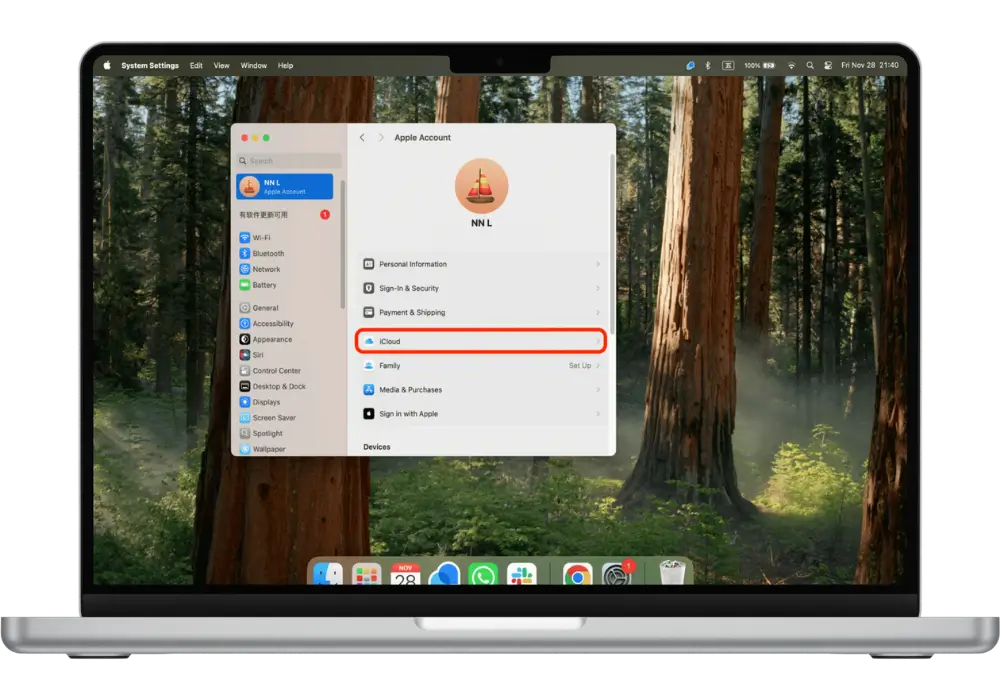
2. Tap On Apple ID Profile

3. Tap iCloud

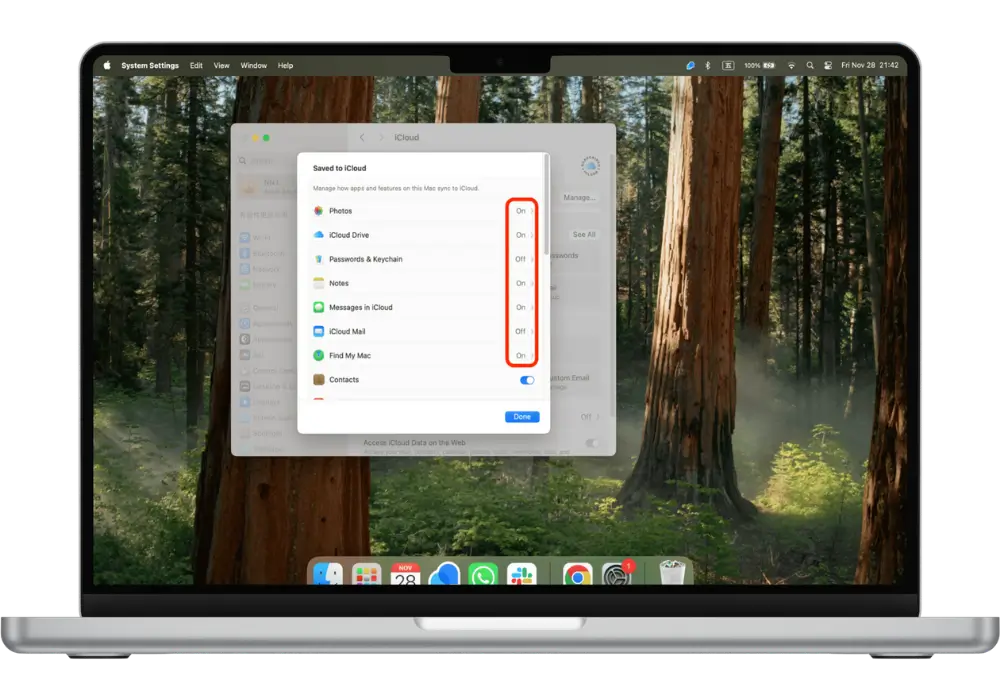
4. Toggle On Anything You Want Stored In Your iCloud

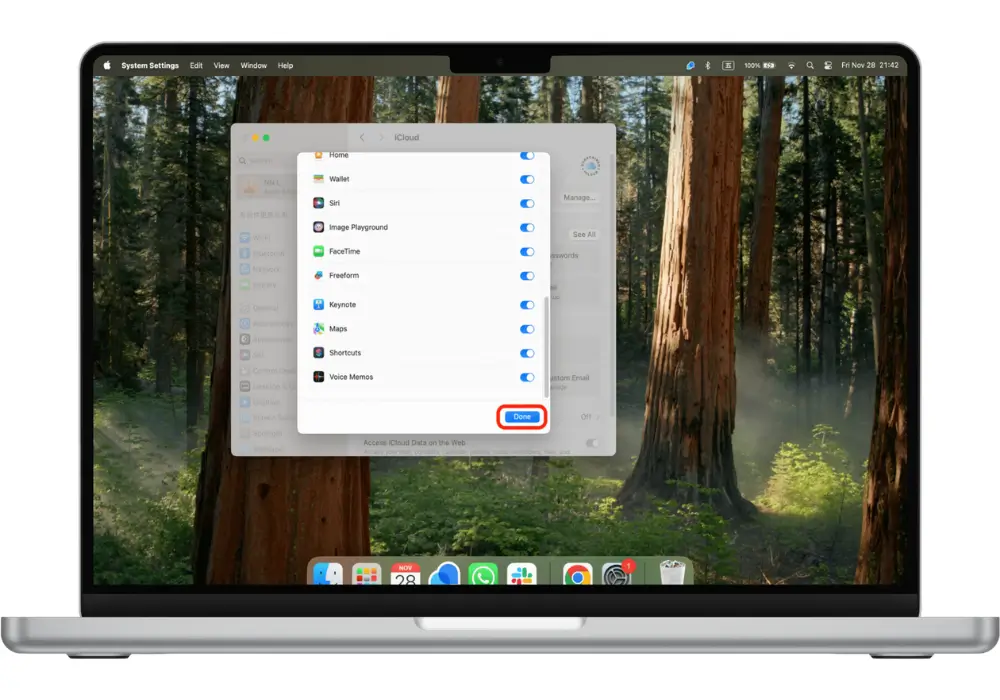
5. Click Done

2. Turn Off & Sign Out iCloud

Disable Find My, Sign Out On Mac.

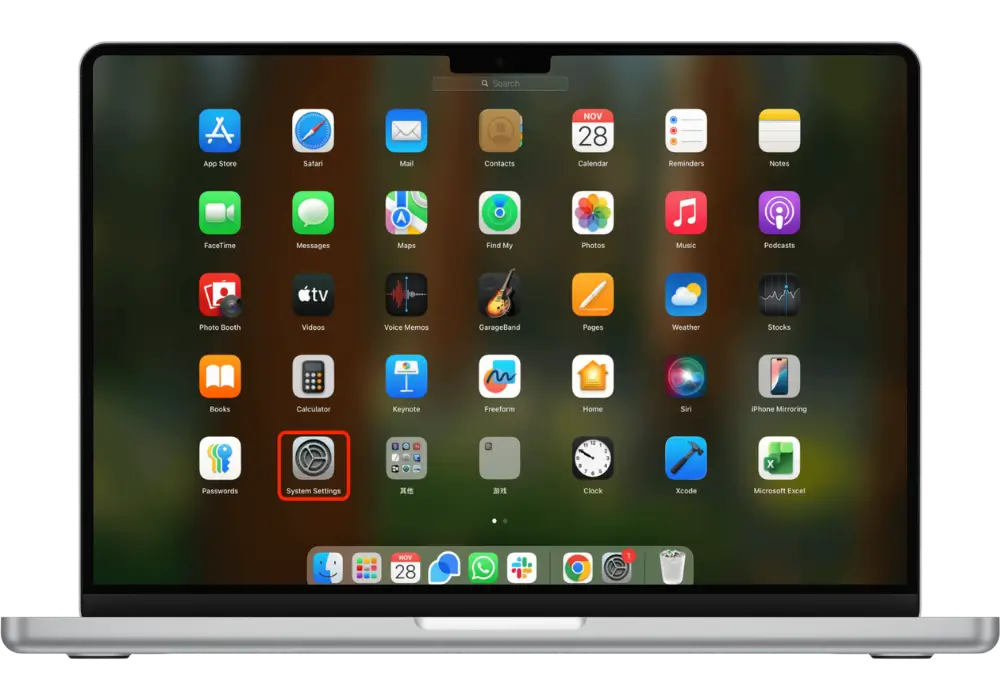
1. Tap Settings

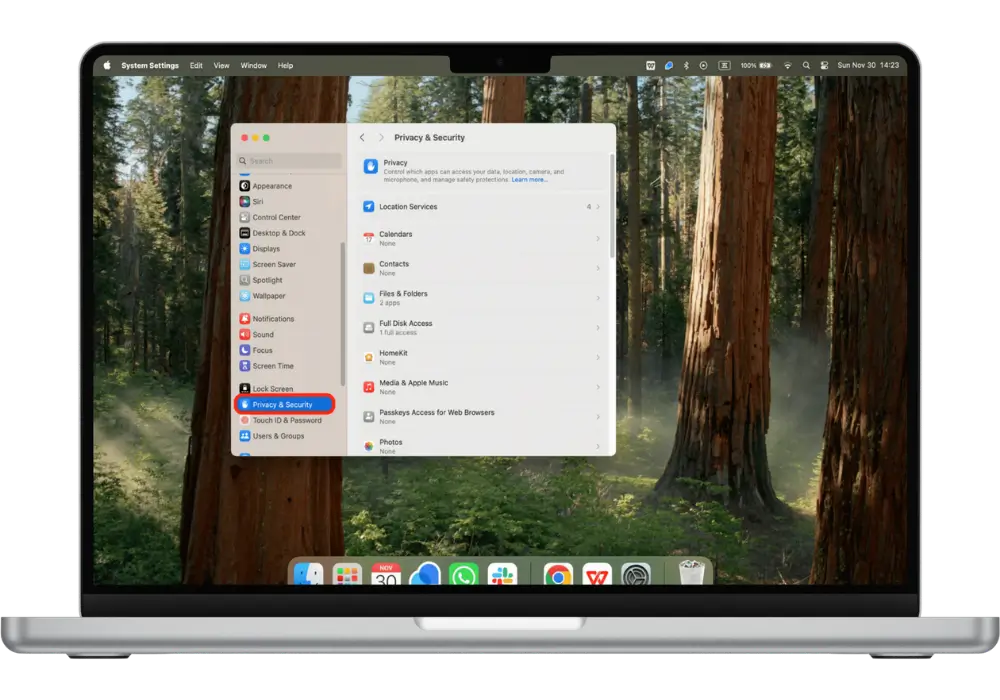
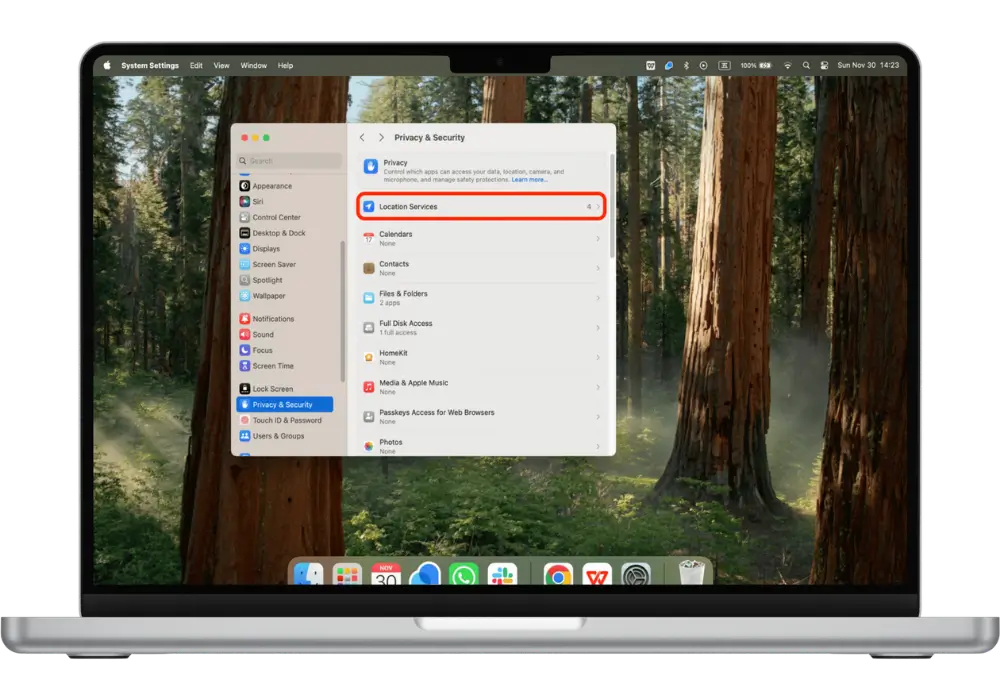
2. Scroll Down and Tap Privacy & Security

3. Tap Location Services

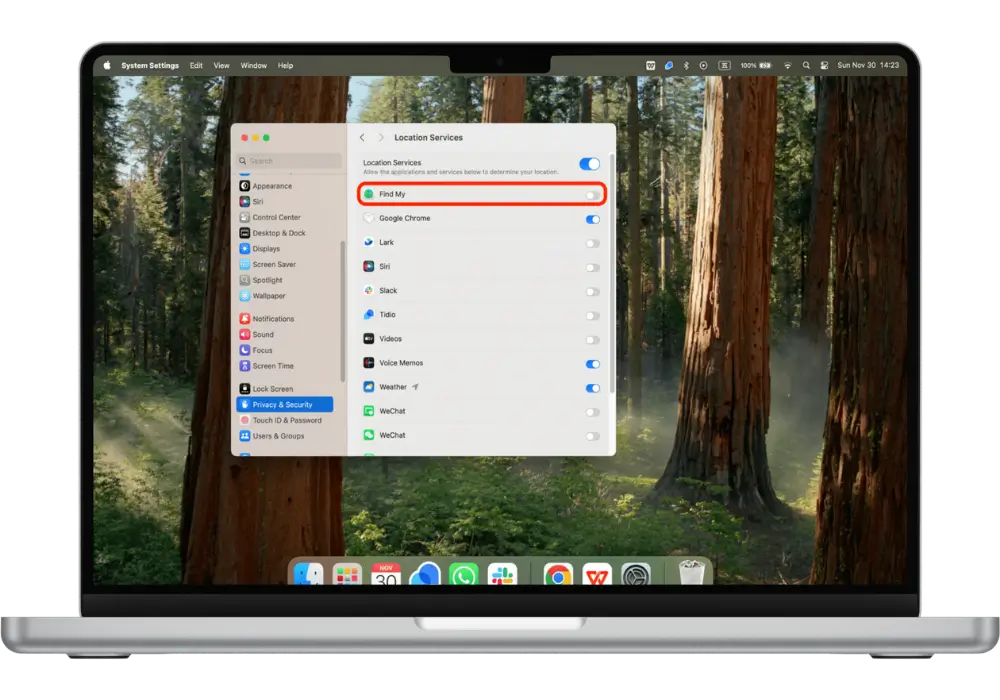
4. Toggle Find My Off

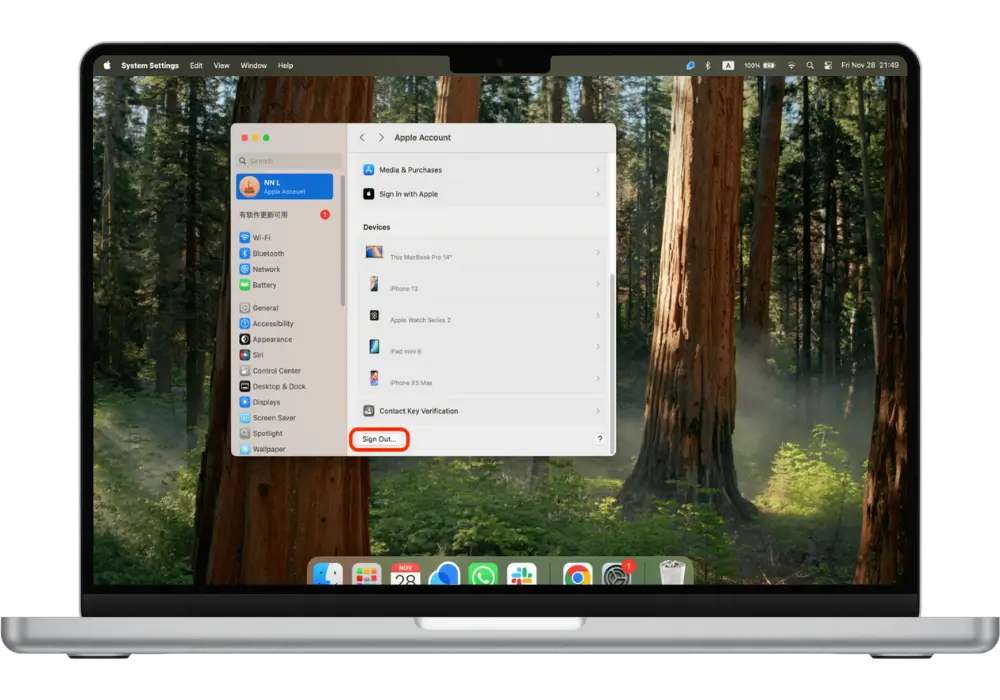
5. Tap Apple ID Profile, Scroll Down and Tap Sign Out iCloud

3. Factory Reset

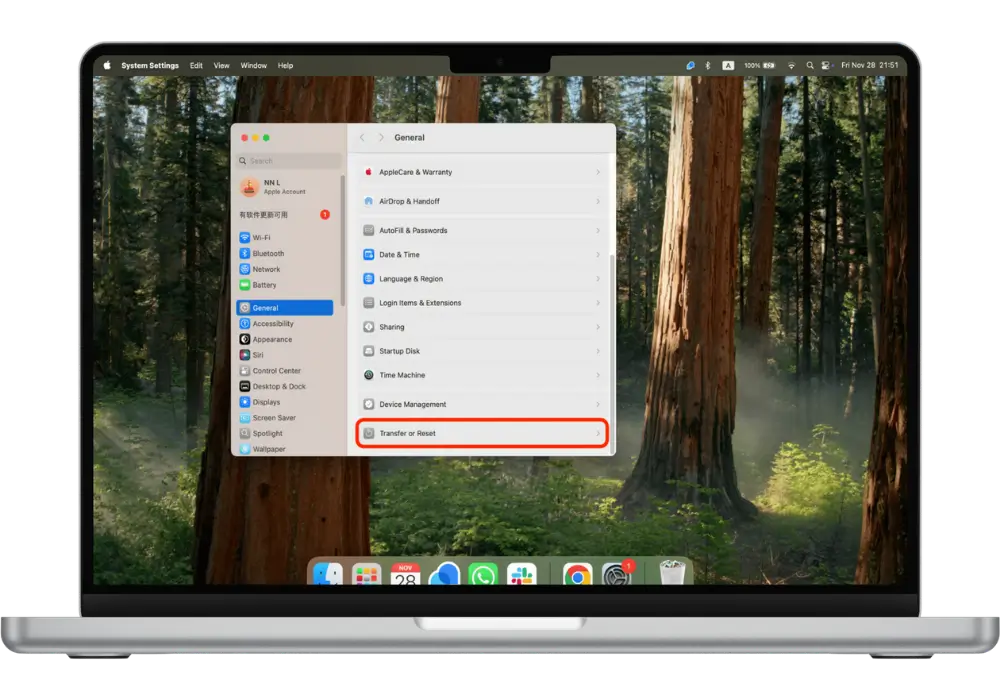
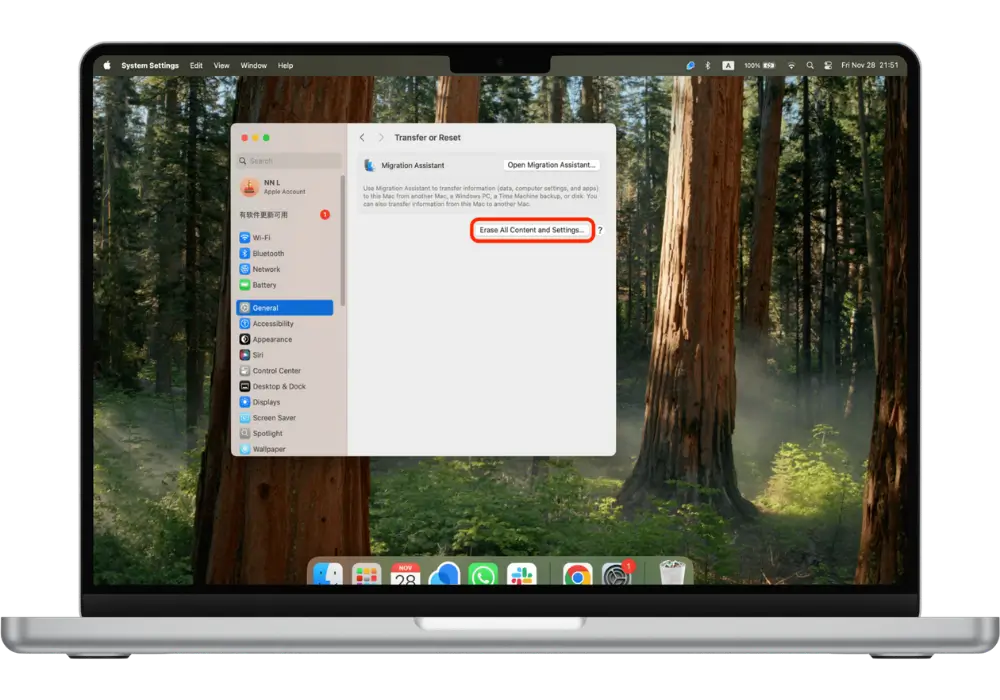
Settings > General > Transfer or Reset > Erase All Content and Settings.

1. Tap Setting

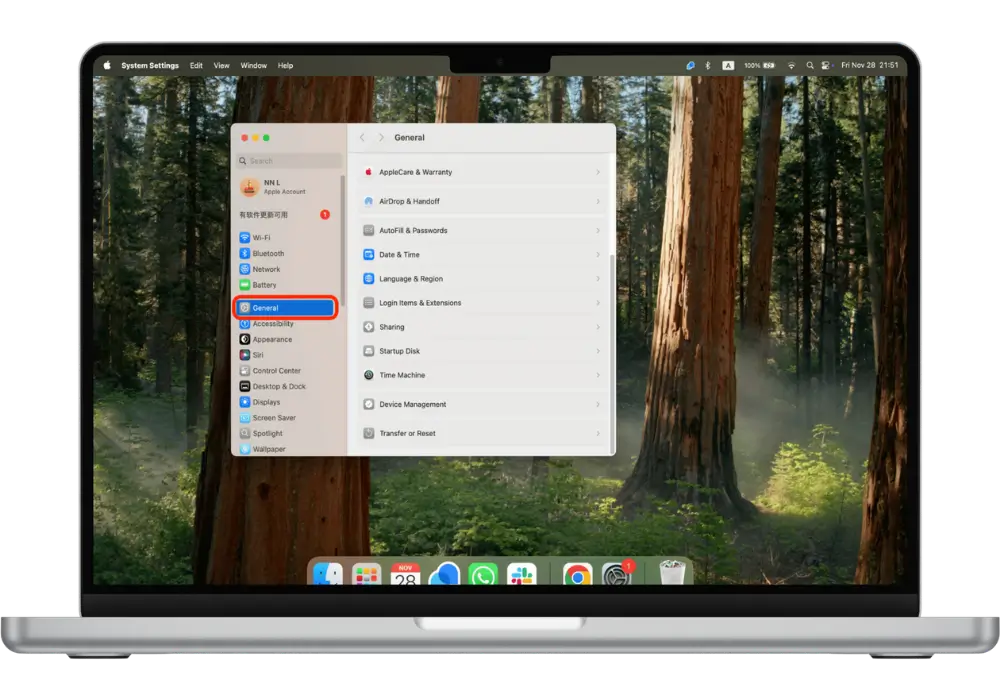
2. Tap General

3. Scroll Down and Tap Transfer or Reset

4. Tap Erase All Content and Settings

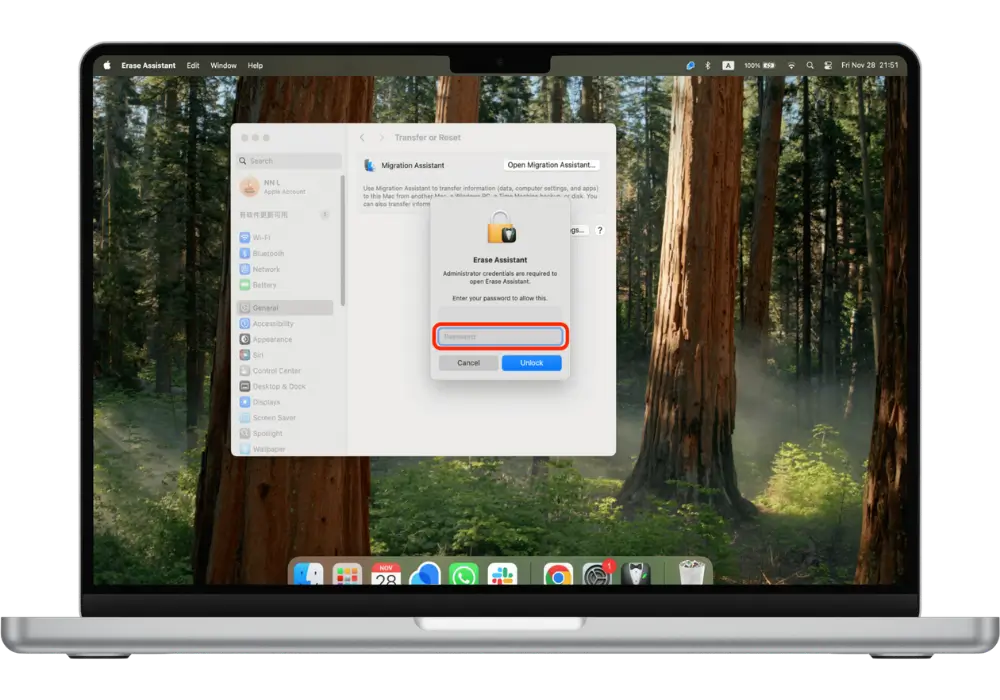
5. Confirm By Entering Your Mac Passcode to Unlock

Tips:
Do/Don't

Do: Pad the corners, use a sturdy box if needed.
Don’t: Leave iCloud locks on.